Orders and scheduling
Order and Truck Scheduling Software for Bulk Haulers
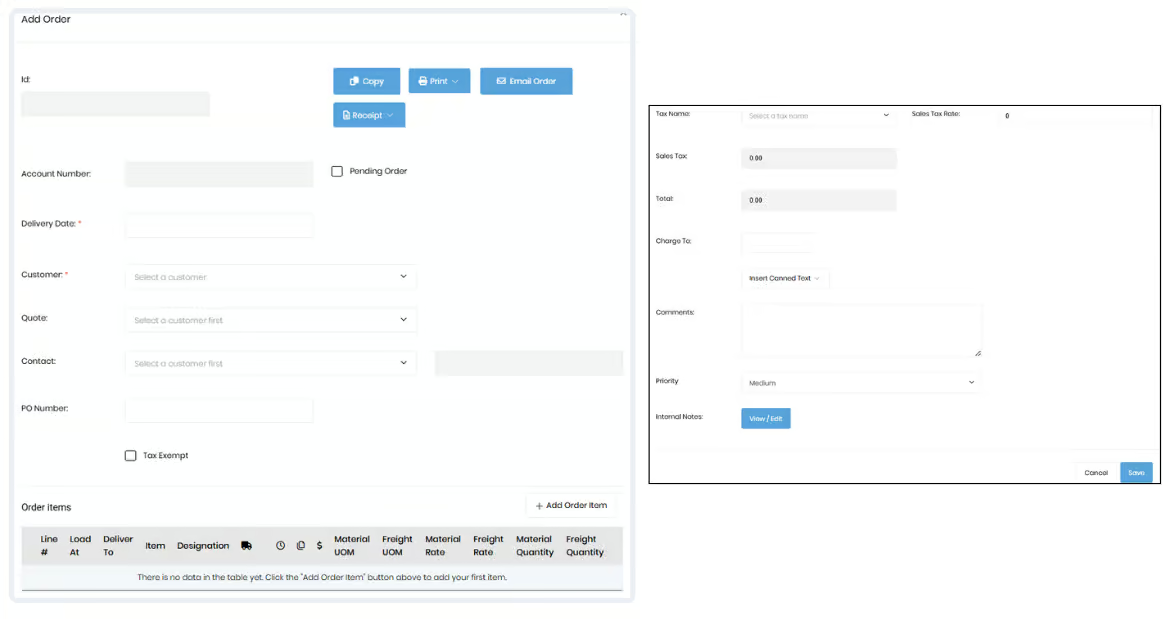
Turn accepted quotes into orders in a few clicks, say how many trucks each day needs, and let Bulk Haul Software total the material, freight, fuel surcharge and tax. Confirmed orders land on the dispatch schedule, ready to assign.
The Order Process in Bulk Haul Software
From the quote the customer accepted to the tons you actually hauled, the order carries the details forward.
Start from the accepted quote
Turn a quote into an order and everything carries over except the quantity ordered, including the customer, contacts, prices and fuel surcharge.
QuotesHold it until the customer commits
Customers who haven't decided yet go in as pending orders. They stay off the schedule until confirmed, then convert without retyping.
Set what each day needs
Build the order for a specific date with as many line items as the job needs, and say how many trucks it takes and what kind.
Let the totals calculate
Material, freight, fuel surcharge and tax are totaled for you, using whichever of the four tax methods fits the customer.
Put it on the schedule
Confirmed orders go straight to the dispatch schedule. Recurring jobs can be duplicated and extended to new dates instead of entered again.
DispatchingReport on what was hauled
Back-office reports use the quantities actually hauled, not the quantities ordered, and the same tickets feed invoicing.
Invoicing
Pending orders
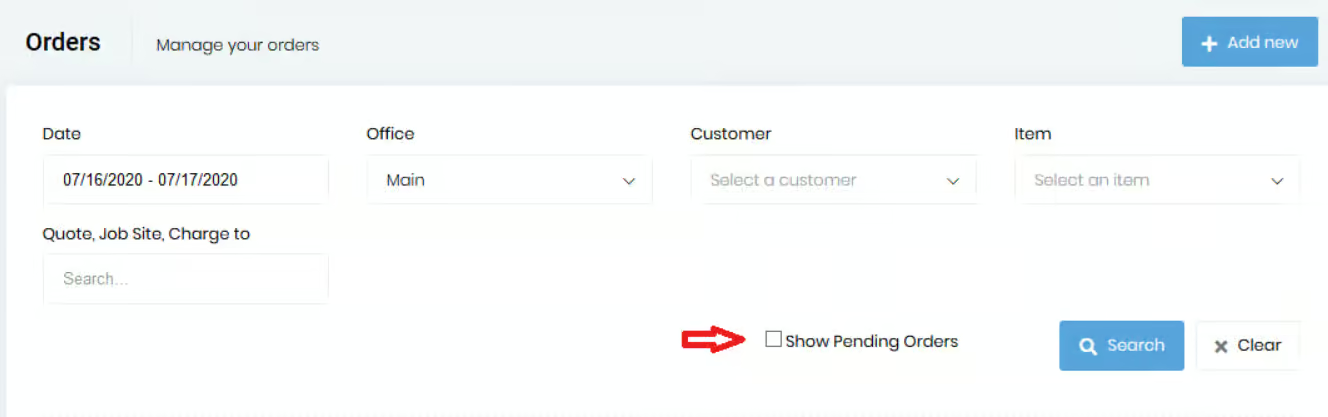
Hold Jobs for Customers Who Haven't Decided
Bids often sit for days before a customer commits. Pending orders keep the details ready without cluttering the schedule.
- A separate view for orders waiting on the customer
- Kept off the dispatch schedule until confirmed
- Converted to a live order without entering anything twice
Load-based jobs
Run Until Stopped for Jobs With No Set Load Count
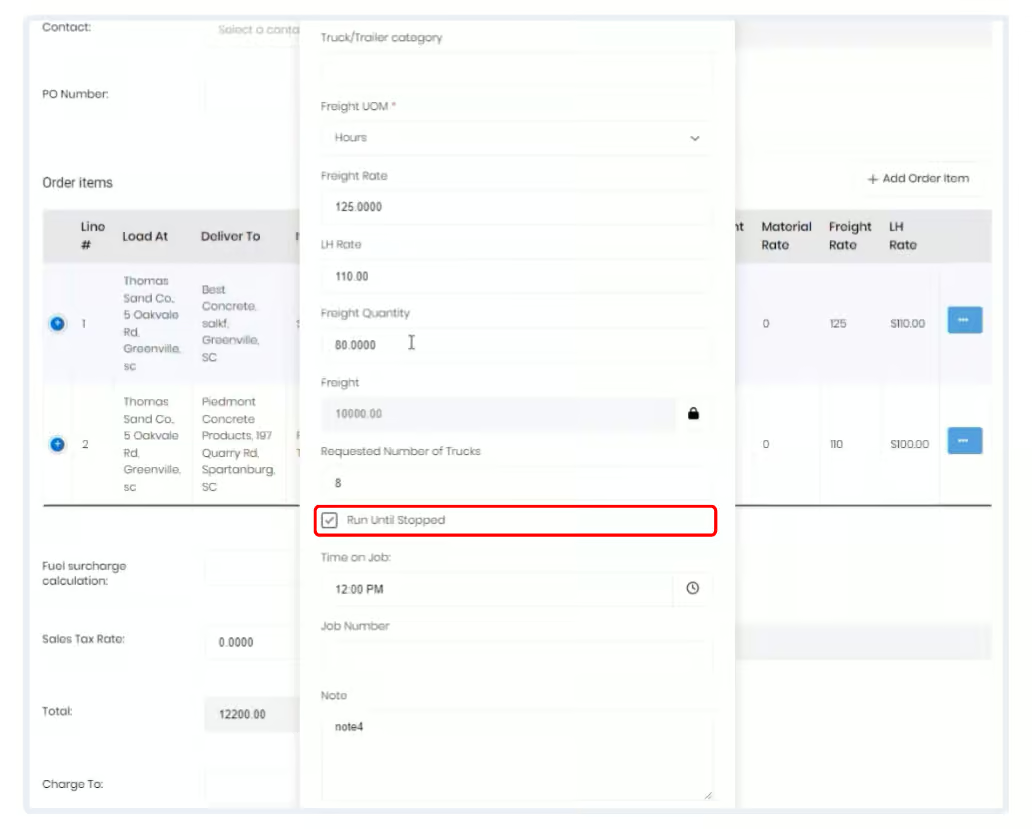
When the job site will take loads until the foreman says stop, you don't have to guess how many dispatches to send.
- A new dispatch is created each time one is completed
- The dispatcher ends the job with one button
- Or the driver ends it in the app when the foreman says it's done
Multiple offices
Several Offices, One Set of Orders
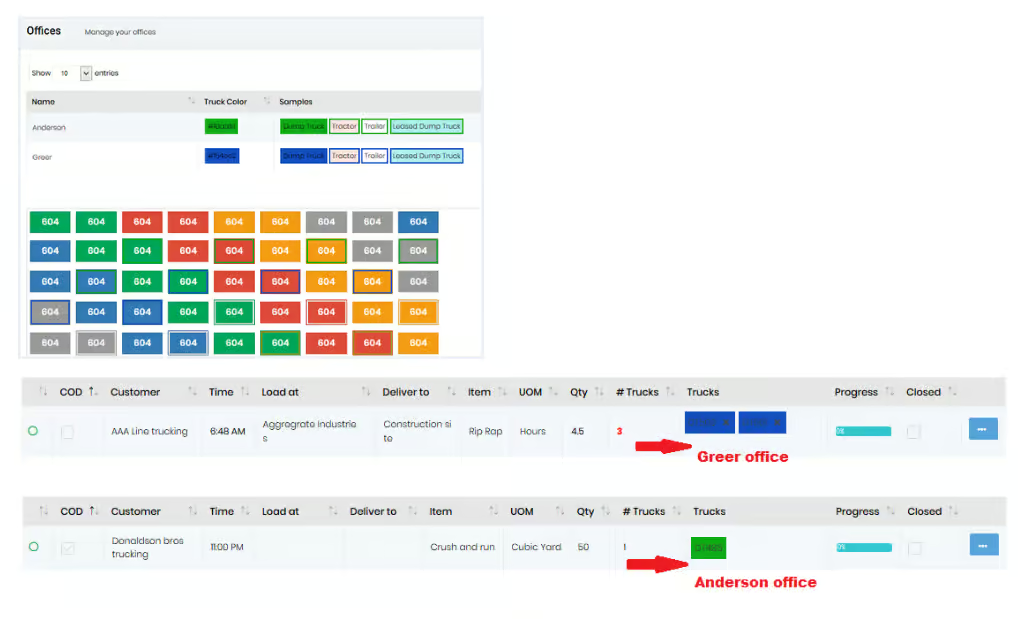
With the multi-office add-on, dispatchers in different offices work from the same orders and schedules instead of keeping their own copies.
- Shared orders for projects that span offices
- Trucks color-coded by the office responsible for them
- Office-specific receipts and reports show each office's share
Order Management for Every Kind of Bulk Hauling
The same orders, line items and truck requirements fit aggregate, agriculture, logging, liquids and every other kind of bulk hauling.
Frequently Asked Questions
Yes. When you create an order from a quote, everything is filled in automatically except the quantity ordered, including the fuel surcharge set on the quote.
Save it as a pending order. Pending orders have their own view and stay off the schedule until the customer confirms, then you convert them without entering the details again.
Check "Run until stopped" on the order. Each time a dispatch is completed, a new one is created. The dispatcher can end the job with one button, or the driver can end it in the driver app when the foreman says they're done.
Choose from four tax calculation methods, including material only or all-inclusive. Tax is calculated automatically, and you can override it when you need to.
Yes, with the multi-office add-on. Offices share orders and schedules, trucks are color-coded by the office responsible for them, and receipts and reports show each office's share.
Duplicate the order and extend it to the new dates. You can also change an order's date and move its trucks in bulk when the customer reschedules.
Bulk Haul Software is the next generation of Dump Truck Dispatcher and has all of its order management functionality and more.