Setting Up QuickBooks Online
Includes a video that shows a walkthrough of configuring the "Settings" and connecting to QuickBooks Online.

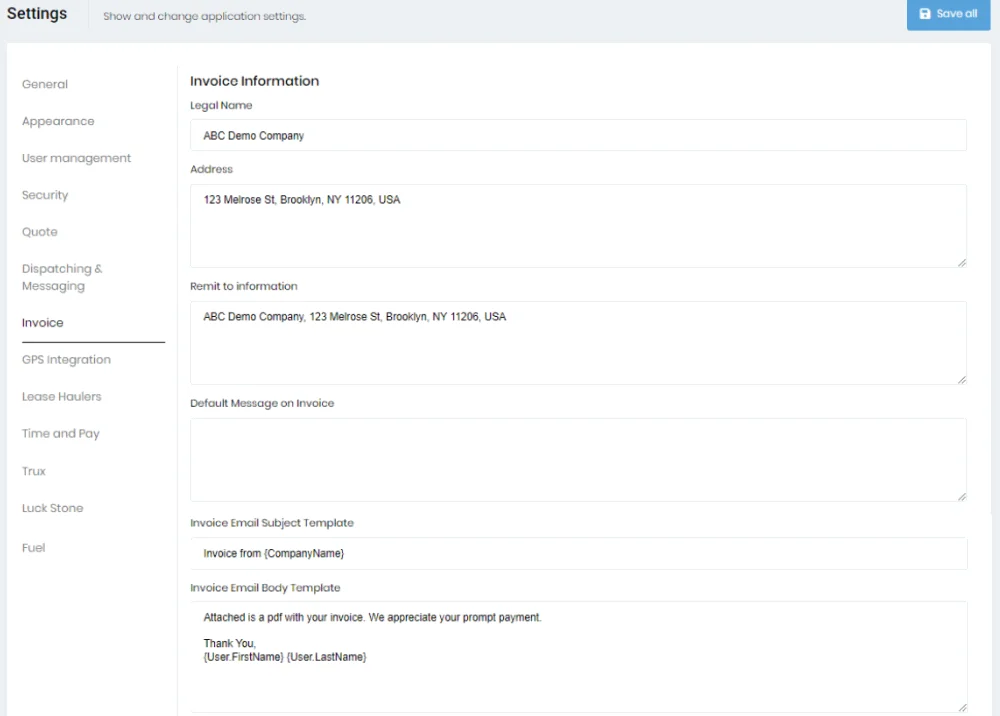
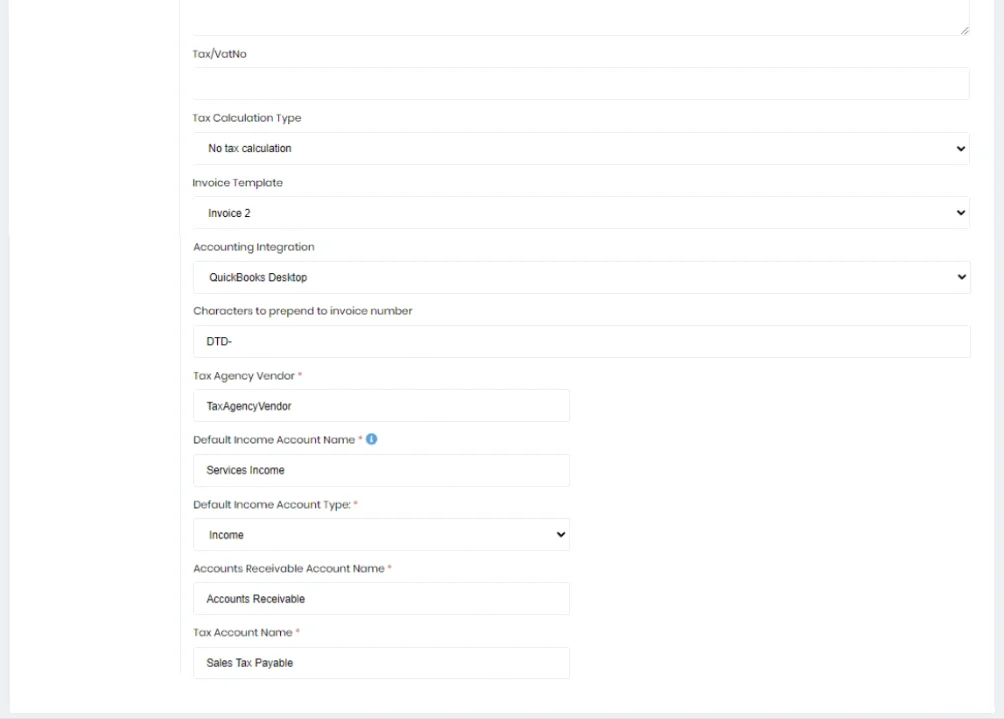
Before you use the invoicing and QuickBooks functionality, you must make sure it is configured properly. Below is a screenshot of the Invoice Settings.
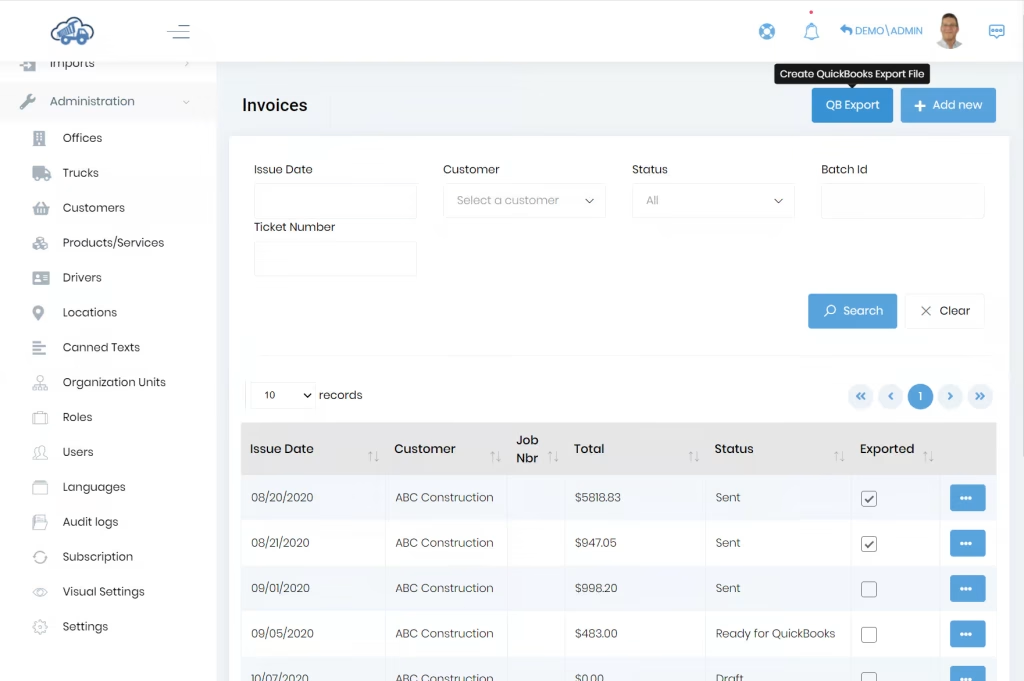
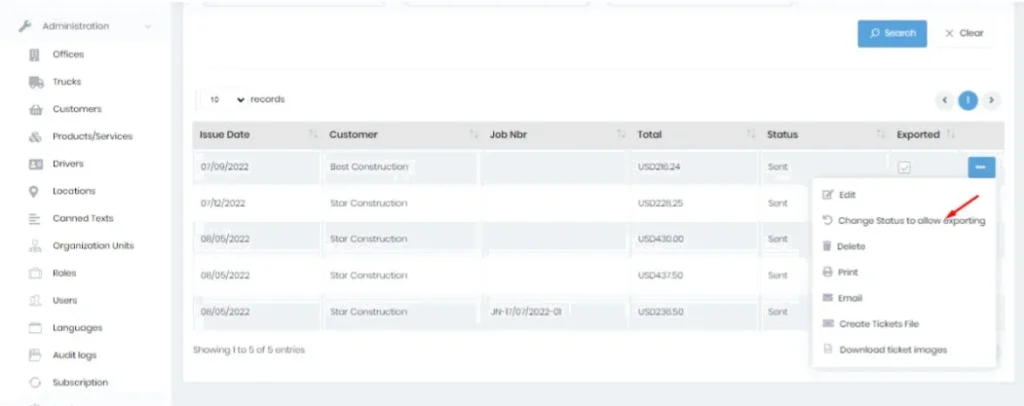
This document assumes you have added your tickets and already created invoices based on the tickets. You can review your invoices and set them to “Ready for QuickBooks” using the menu as shown below. Or you can leave them as they were created in “Draft” status.
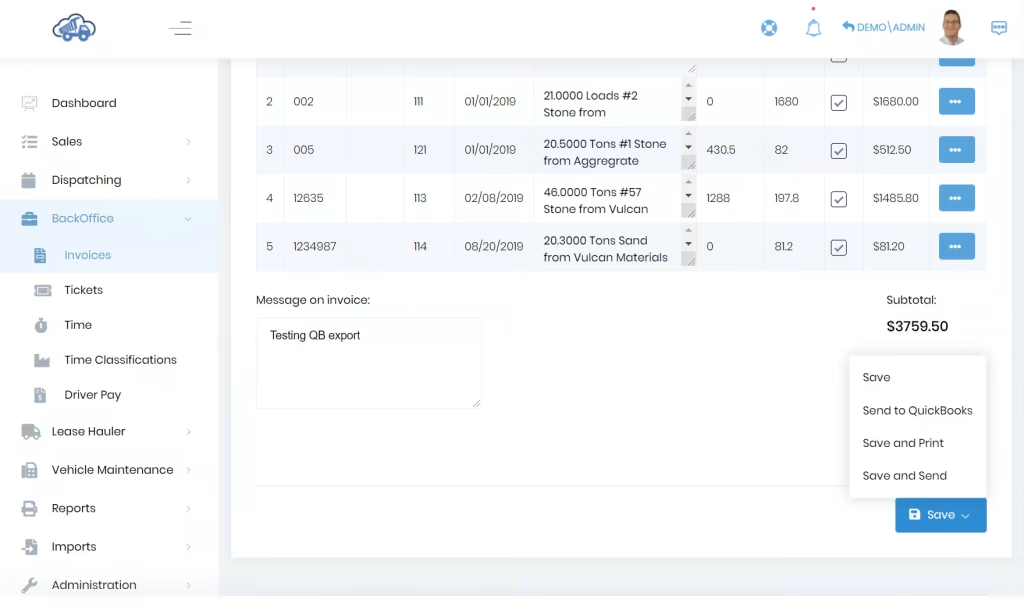
The “Change Status to allow export” menu option allows you to change the status of an already exported invoice to “Ready for QuickBooks”.
If you have customers or products/services that aren’t already in QuickBooks, they will be created in QuickBooks for you.
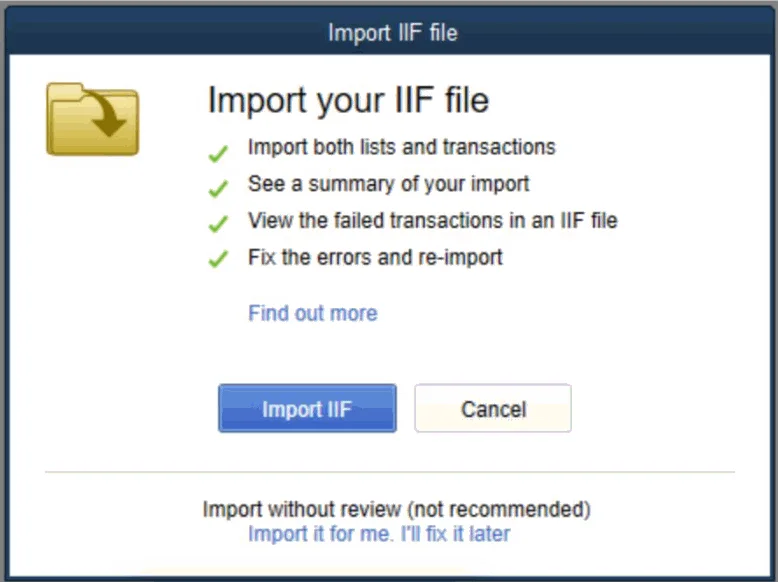
You can import the iif file into QuickBooks using the menu as shown in the below screenshot.

Then you have to click on the “Import IIF” button and select the specific IIF file.
If there are issues with your setup you may see a dialog like the following. In this case, there were some issues related to the tax account setup.
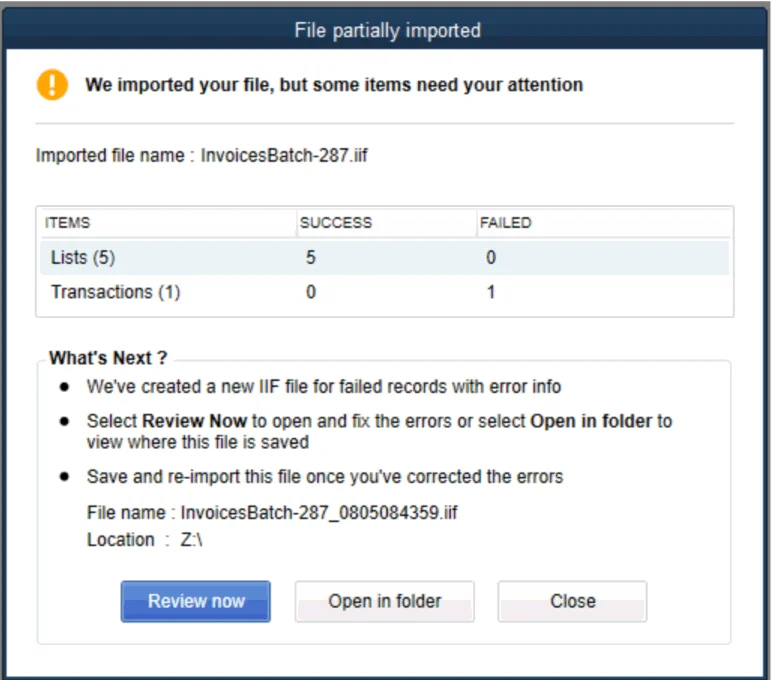
The errors will be displayed in “Notepad” as shown below. If you don’t understand what this is telling you, save the file and send it to me.
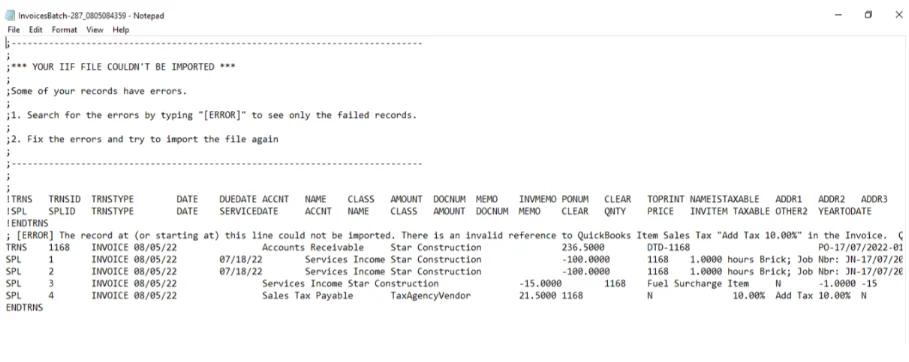
The below screenshot shows how the tax item configured in Dump Truck Dispatcher is missing in QuickBooks.
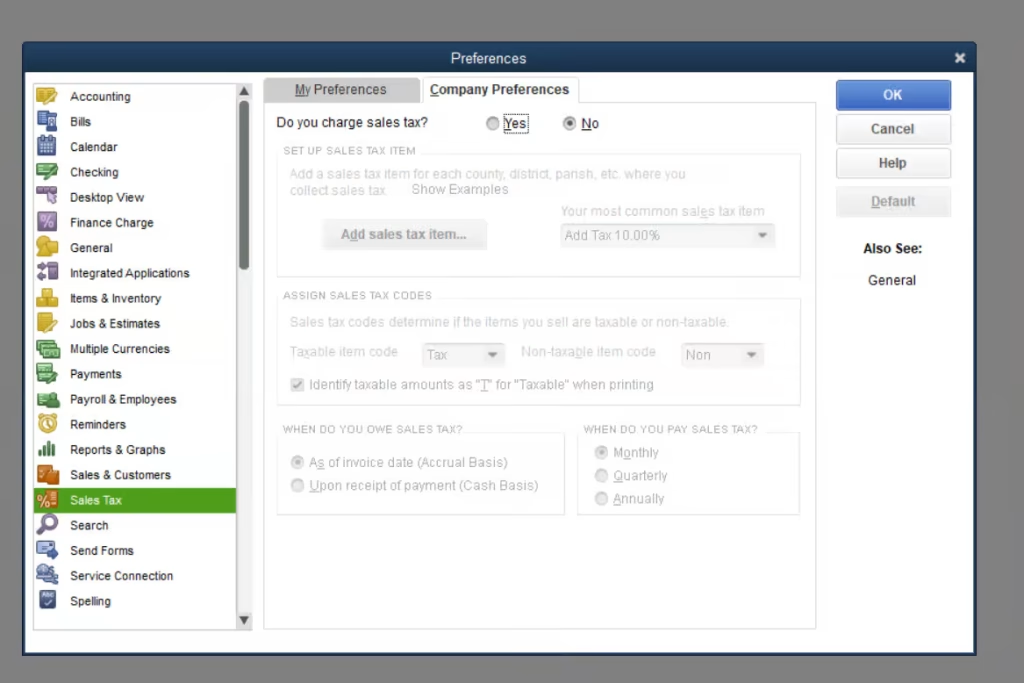
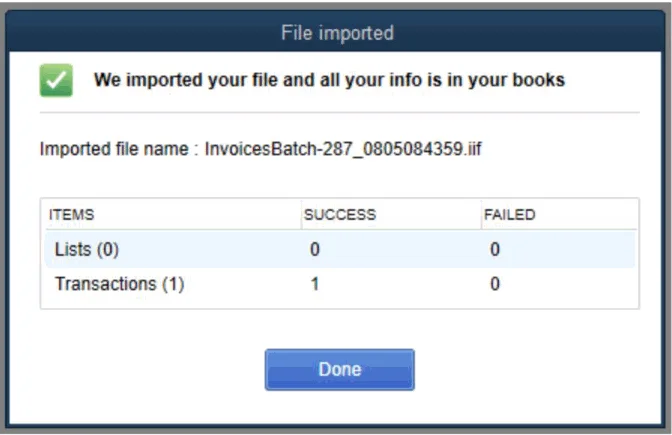
And see that it completes successfully as shown below.
If you have customers or products/services that aren’t already in QuickBooks, they will be created in QuickBooks for you.
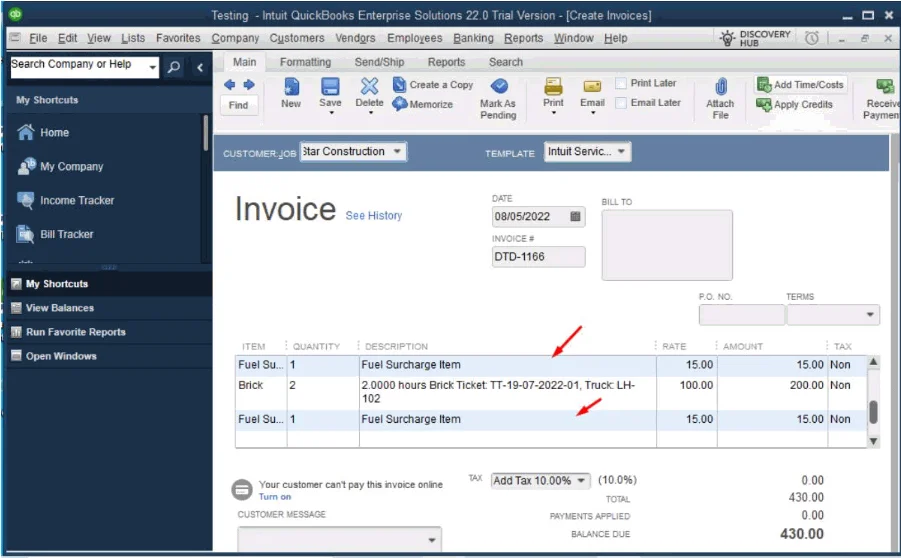
At the time of creating the invoice if “Show Fuel Surcharge on Invoice” in Settings is specified as “Single line item at the bottom”, then on that invoice import on QB Desktop there will be one fuel surcharge line for every ticket. The specific fuel surcharge amount will be reflected on the grand total.
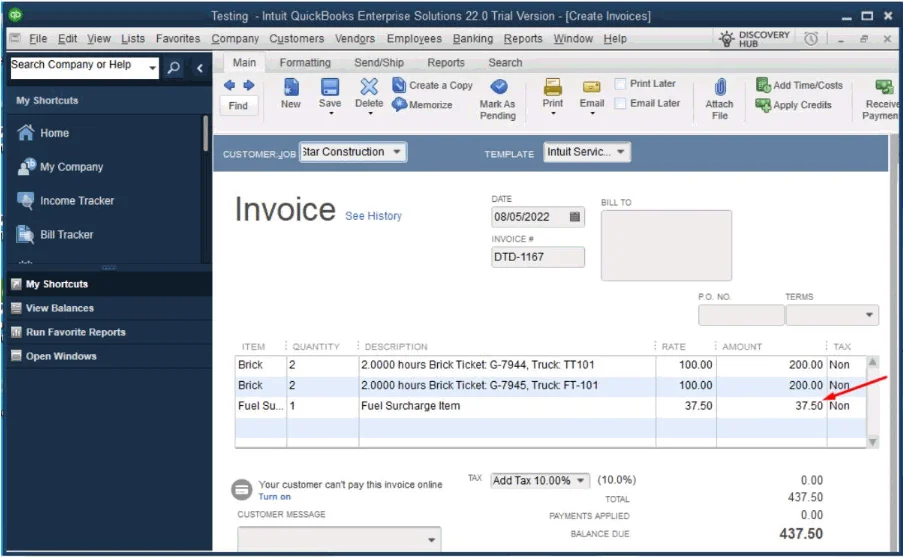
If at the time of creating the invoice “Show Fuel Surcharge on Invoice”control in Settings is specified as “Line item per ticket”, then on that invoice import to QB Desktop there will be one fuel surcharge line for every ticket, if there is a fuel surcharge amount for that ticket. The specific fuel surcharge amount will be reflected on the grand total.