Scheduling and Dispatching
Overview The schedule shows all your jobs for the specified day. If an order has multiple lines where each line is considered a job, each job will show as a…

There are currently 3 different ways of sending messages to your drivers.
Most drivers should be using the native mobile driver apps found in the app stores. If you are still using the old progressive web apps, you might consider migrating to these newer apps. Typically, you want to avoid the drivers having to pick up their phones to read and respond. You can find a link to the new native driver apps here.
If your drivers are using the native mobile apps, you can message them using the following process. In the upper right-hand corner of your screen, you will see a small chat box. This is used to send in-app messages to drivers and other team members.
Steps:
If you want to send an SMS or Email, click the menu “Messages” under the “Dispatching” menu on the left side of the screen. This function allows you to send messages to active drivers. You can either send messages to all the active drivers or you can select individual drivers as well. Messages are sent either in SMS or in email or in both ways, depending on the driver’s preferences.
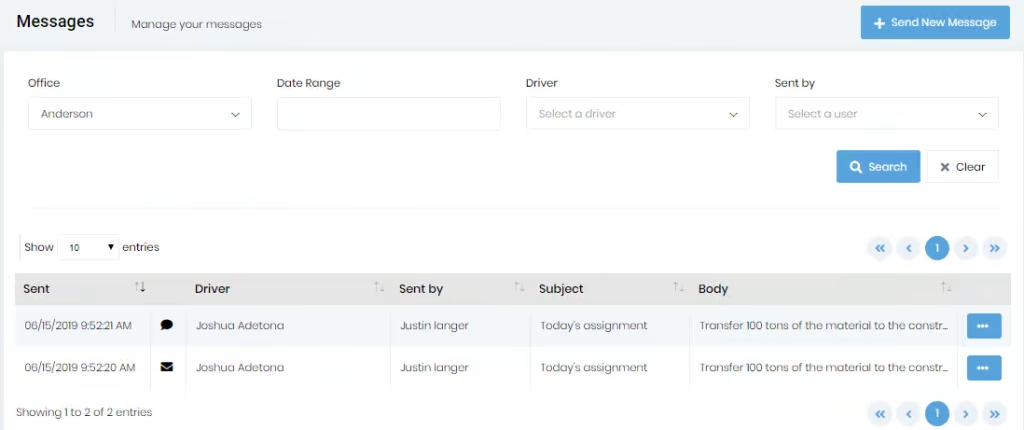
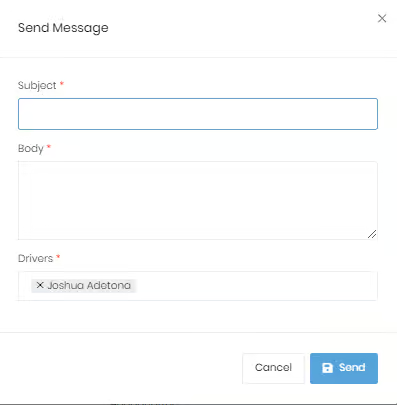
Click on the “Send new message” button displayed on the top right of the page. Enter the subject, body and then select particular drivers or select all the driver’s options and send the message.
Clicking the ellipsis (…) button on the main page allows you to view the message using the “view” button.