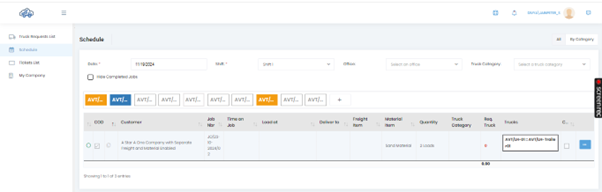
The Dispatcher sends a request to a Lease Hauler from the Main Dispatcher Application.
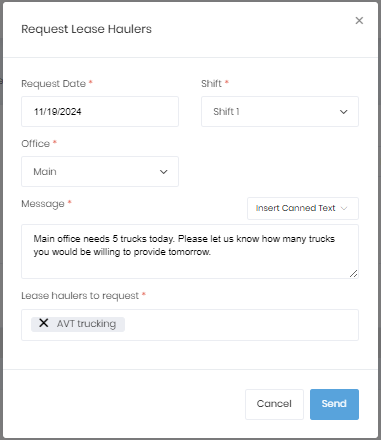
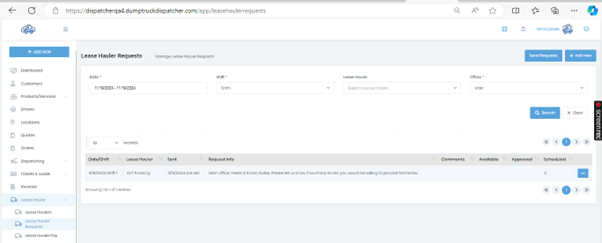
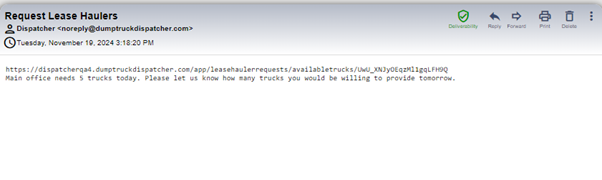
Depending on the preferred format of the person (Lease Hauler Dispatcher/Administrator) will receive either Email or SMS, or both. Here, consider the preferred format of the person (Lease Hauler Dispatcher/Administrator) as Email.
The specific Lease Hauler Dispatcher will receive an email regarding the Lease Hauler Truck Request.
The specific Lease Hauler Dispatcher logs in to the Lease Hauler Portal. And selects the “Truck Requests List” menu item.
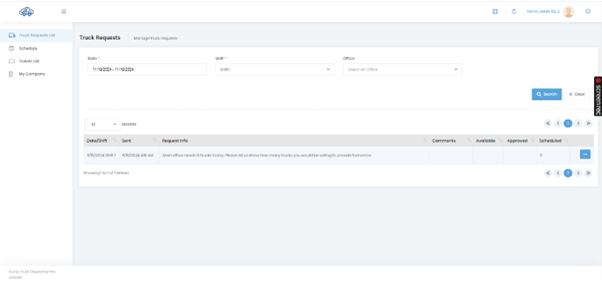
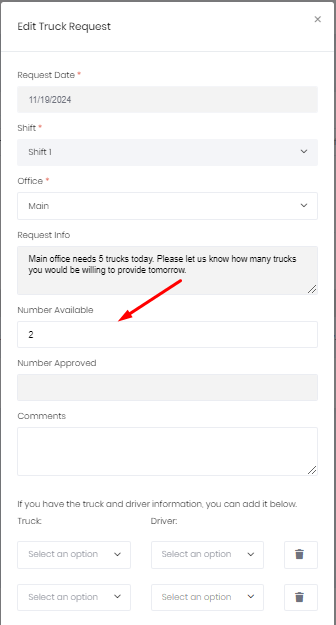
The Lease Hauler Dispatcher selects the specific Truck Request, clicks on the Action button, selects the Edit menu option, specifies the Available Number of Trucks, and clicks on the Save button.
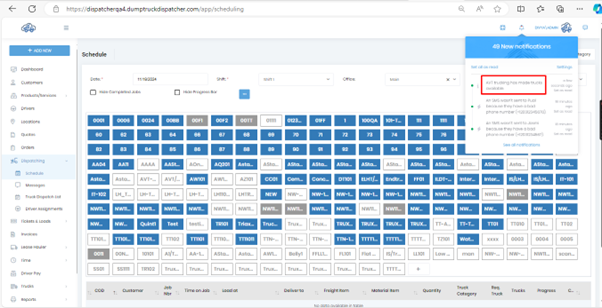
On the Main Application, the Dispatcher will receive a transient message: ” {LH Company Name} has made trucks available.” And this message is also visible on the Notification list.
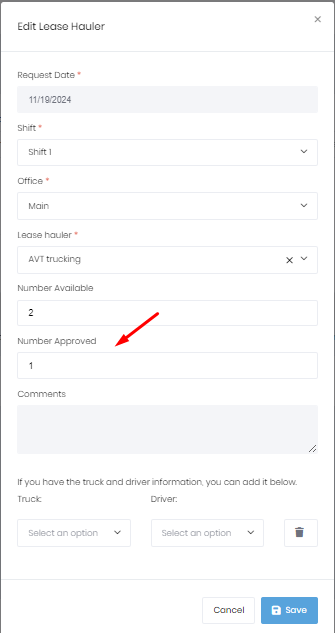
The Dispatcher selects the specific Lease Hauler Request from the Lease Hauler Request Screen, specifies the Approved number of Trucks, and Saves it.
The specific Lease Hauler Dispatcher will receive an email “{CompanyName} has accepted some of your trucks. Please visit the “Requests” to see the specifics.” “Requests” should be a link to the request form on the correct tenant.

The Lease Hauler Dispatcher will be redirected to the Truck Status Page by clicking on the link in the email.
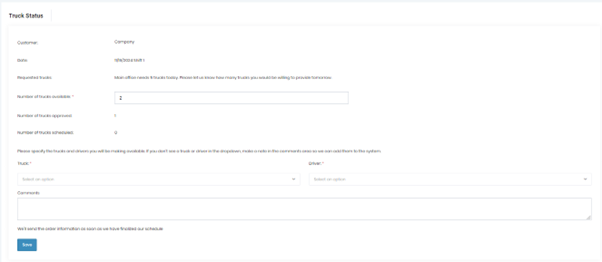
The Lease Hauler Dispatcher can specify the relevant Trucks and Drivers. They can also add comments.
Once it is saved, on the Main Application, the Dispatcher will receive a transient message as ” {LH Company Name} has committed trucks.”. And this message is also visible on the Notification list.
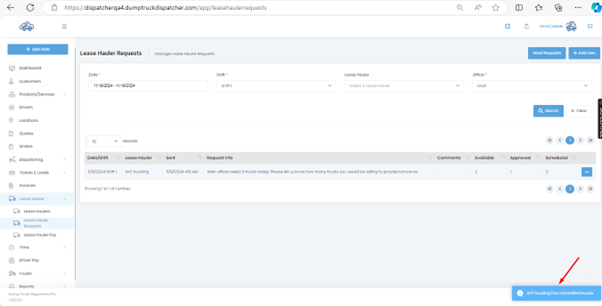
If the Dispatcher assigns the specific Lease Hauler Truck – Driver to an Order line item as shown below.
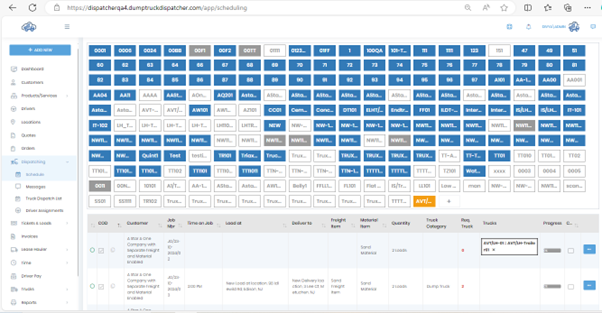
Then, the Lease Hauler Dispatcher will receive an email as “{CompanyName} has assigned your trucks to jobs. Please visit the “Schedule” to see the specifics.” “Schedule” should be a link to the schedule on the correct tenant.

The Lease Hauler Dispatcher will be redirected to the Schedule Page when opening the link in the email.