LuckStone Settings
The “Luck Stone” tab will be shown only if” import Luck Stone earnings” feature is enabled on the tenant. For importing Luck Stone earnings, you should have the required permission…

The settings on the Fuel tab allow you to define the fuel surcharge calculations and how it is added to the invoices and included in the revenue numbers.
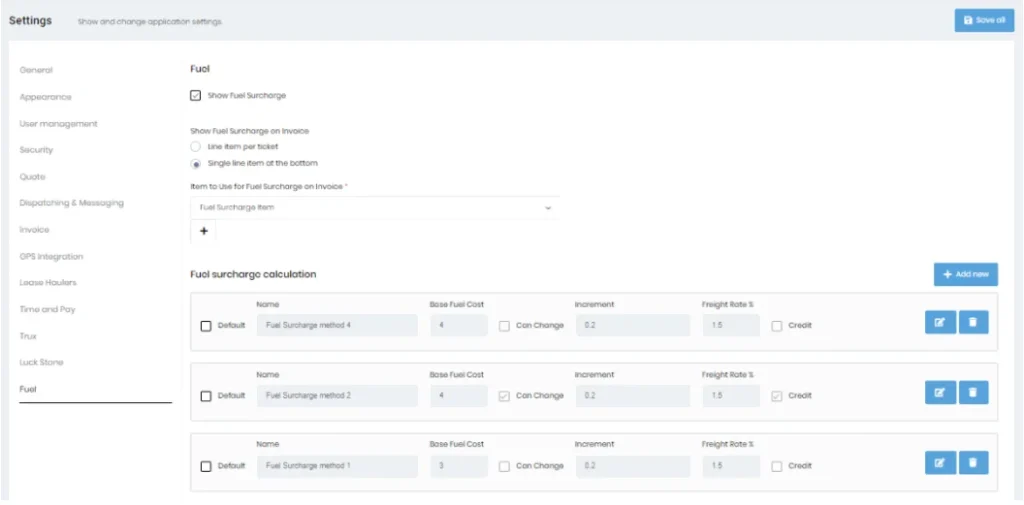
First, you have to enable the “Show Fuel Surcharge” checkbox. Then it will be reflected on the Quote view, Order view, Tickets by Driver view, Invoice view, and other revenue related reports.
If you want to show the fuel surcharge for each ticket on a separate line on the invoice, specify the “Show Fuel Surcharge on Invoice” as “Line item per ticket”.
Otherwise if you want to show the sum of all the fuel surcharges for all tickets on the invoice on a single line, you have to select “Show Fuel Surcharge on Invoice” as “Line item per ticket”.
The “Item to Use for Fuel Surcharge on Invoice” control allows you to specify the fuel surcharge item on invoice. You can create a fuel surcharge item by clicking on the “+” icon shown below the control and the newly created item will automatically get selected.
By clicking on the “Add new” button on the “Fuel surcharge calculation” area, a new block will be added to define a new fuel surcharge calculation method.
When adding a fuel surcharge calculation method, you can specify its Name, Base fuel cost, Increment value and Freight Rate Percentage. If you want to change that base fuel cost from Quote or Order views you have to enable the “Can Change” checkbox. If the “Credit” checkbox is checked, when the current fuel cost goes below the base fuel cost, the customer will receive a credit.
By enabling the “Default” checkbox you can specify a fuel surcharge calculation as default and it will be reflected on the Quote and Order views. At a time only a single calculation method can be set as default, if a different one is checked, the original will get unchecked.
You can delete any fuel surcharge calculation method by clicking on the “Delete” icon on that block. It will get deleted, if no data is associated with it.
If you want to edit a fuel surcharge calculation method, select the specific block and click on the “Edit” icon, all controls will get enabled. Once edited click on the “Save” icon.
For more details on configuring and using fuel surcharges, visit this page.