Scheduling and Dispatching
Overview The schedule shows all your jobs for the specified day. If an order has multiple lines where each line is considered a job, each job will show as a…

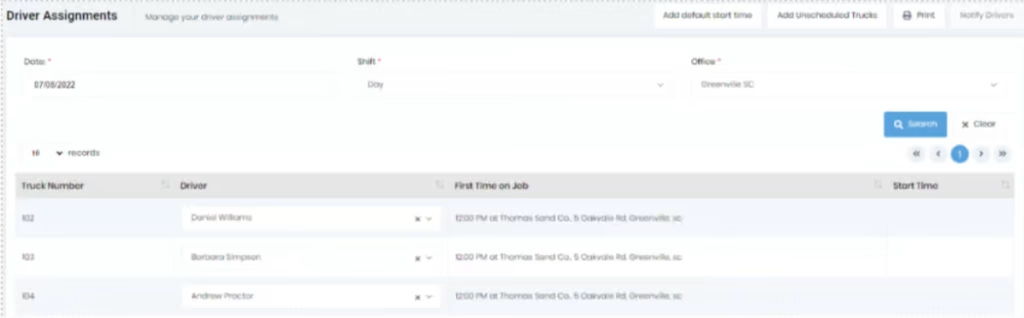
The purpose of this form is to give you one place where you can see all the drivers (and the trucks), they are assigned to on a given day and shift. You can also have the default start times populated for each driver. Clicking the “Print” button will generate a report showing driver assignments and start time.
Once the truck gets scheduled on the order line on the schedule page, the driver assignment record gets created automatically for that truck on this page. If you change the driver of the scheduled truck again through the schedule page, the new driver gets updated on this page automatically.
To add other trucks (which are not yet scheduled for the day), you can click on the “add unscheduled trucks” button. It will add the rest of the unscheduled trucks on this page along with their default drivers (if they have any). But, in case you are using shifts and trying to use the “add unscheduled trucks” button for shifts other than the first shift, then this button will add the unscheduled trucks without any drivers even if default drivers are defined for the trucks.
If you have defined the “Time on Job” on the orders on which the trucks are scheduled, you can just click on the “add scheduled start times” button on this page and the earliest “Time on Job” for that truck and driver will default into the start time column. Then, if you want them to start at a different time, you can edit it here.
Changing the start time on this form does not change the “Time on Job” on the order. Once you have updated the driver for the truck and added the start time for them, you can click on the “notify drivers” button which will send the SMS or email or both depending on the preference settings on the driver’s profile.
You can update the default message (which gets sent by clicking the “notify drivers” button) in the “Driver start time” field on the “dispatching & messaging” tab of the settings page.