Invoicing Process
The recommended process for invoicing. Following this process will make reduce your effort for creating invoices.

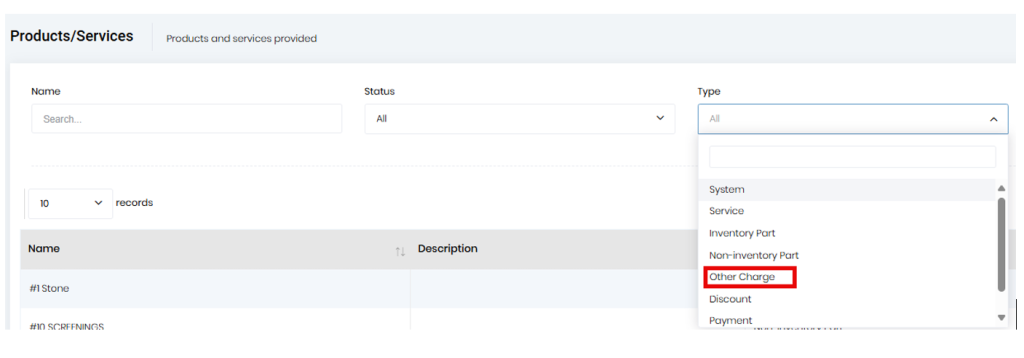
There are 2 ways to add tolls in Dump Truck Dispatcher. Before you can use either approach, you need to have “Tolls” set up as “Other charge” under the products and services. Be sure to set the charge as non taxable.
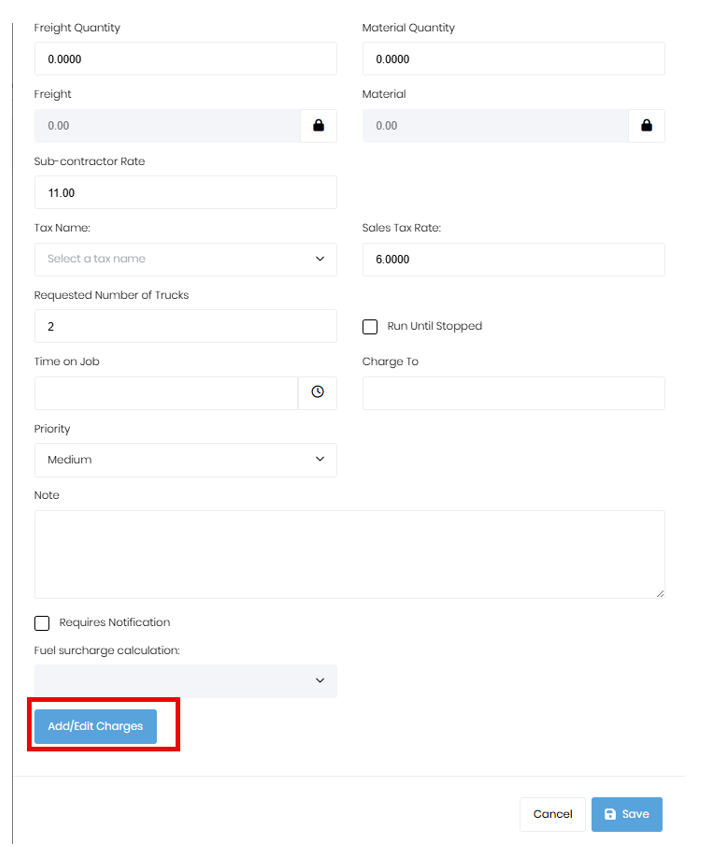
For the first approach if the dispatcher knows there will be tolls involved, they can add them when creating the job as shown in the image below. Click the “Add/Edit” charges button.
On the “Charge” dialog, click the “Add Charge” button.
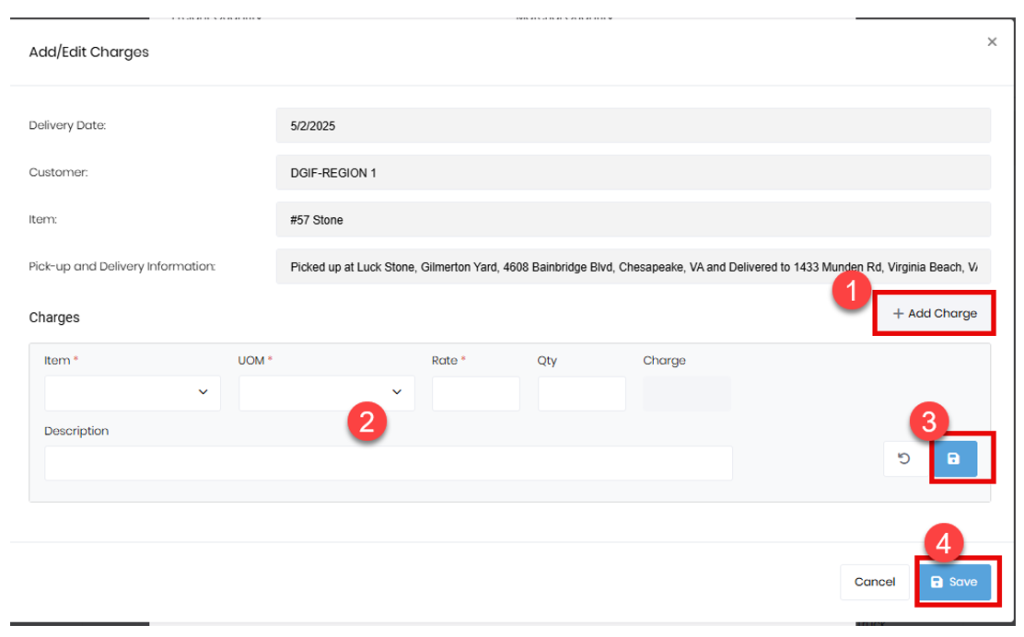
When you generate invoices for this job, the charges will be added. Or you can manually select the charges if building an invoice from scratch.
If the dispatcher is sure there are tolls but doesn’t know what they will be, they can enter a charge of 0 so it will act as a reminder for accounting to add the charges.
The second option is to add the charge directly to the invoice after it has been generated. This is for those where the dispatcher isn’t aware of the tolls nor what the amount may be.
Add the toll charge directly to the invoice by clicking the “Add New Charge” button. This will add a blank line to the bottom of the invoice where you can add a charge.
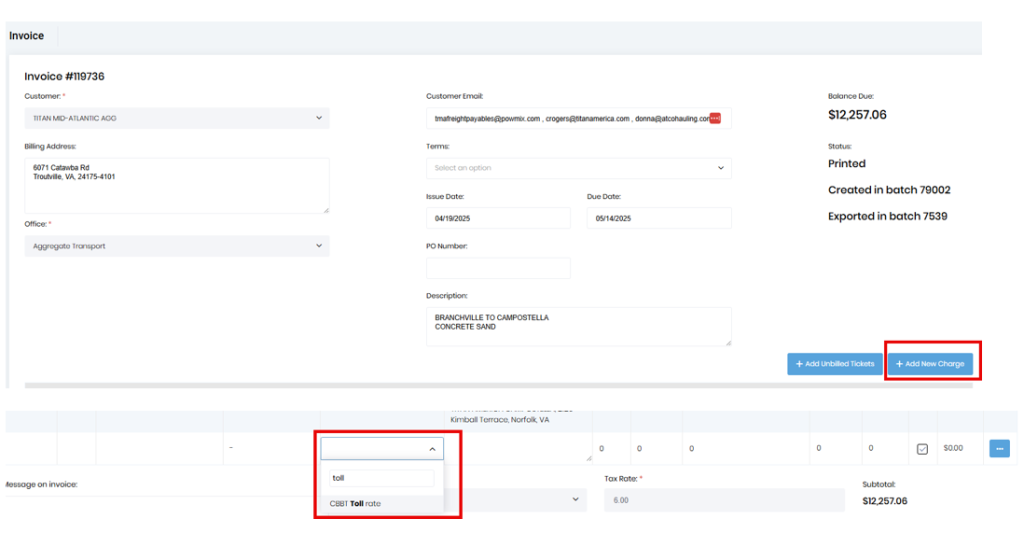
Fill in the charge, rate, description, and quantity. Then click the “Save” button to save the changes to the invoice.