
Frequently, quotes, orders, and jobs are used differently between companies or loosely within a company. Watch this short video for an explanation of how the terms are used in Dump Truck Dispatcher.
Watch the video below to learn how to create quotes.
The below video is a discussion of quote related functionality with a prospective customer.
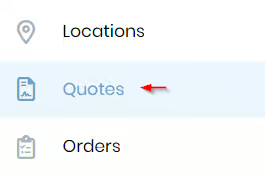
On the main menu click on “Quotes”.
The “Quotes List” shows a list of quotes and provides a means for adding new quotes.
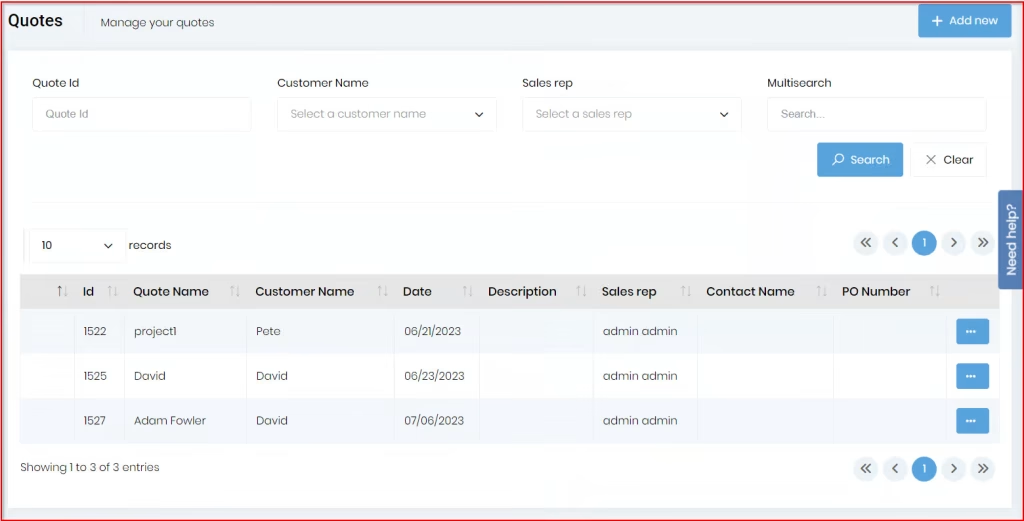
You can add a new quote by clicking on the “Add New” button.

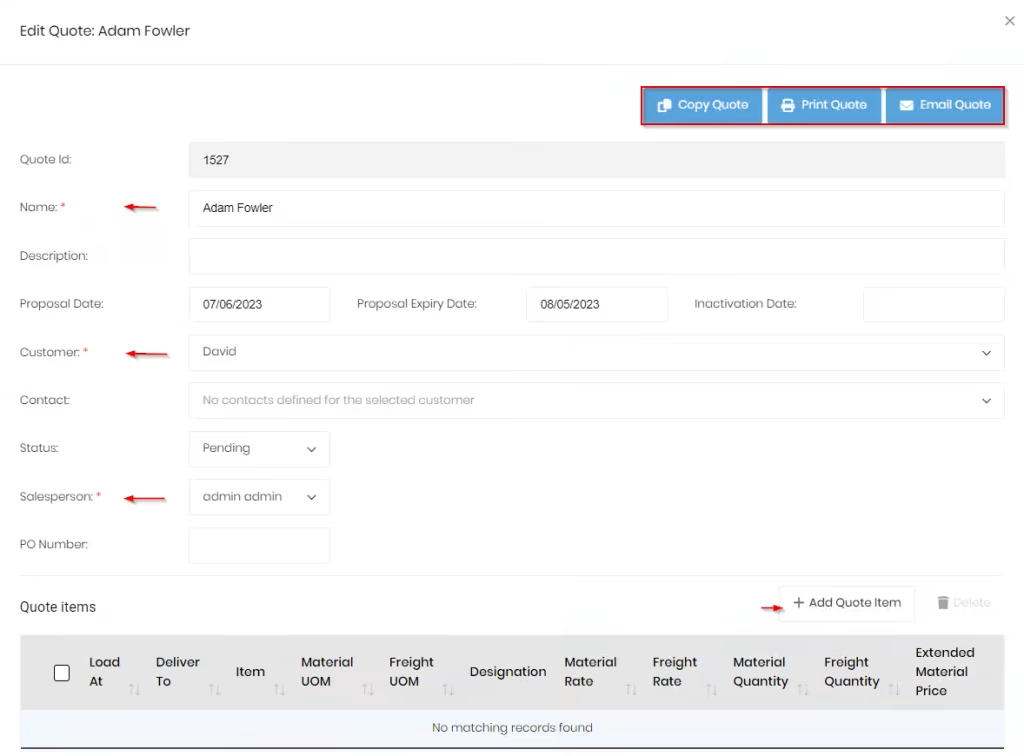
Fill out the fields provided with the corresponding information such as name. You will also select a customer to assign it to and continue filling out the rest of the necessary fields.
On the lower right, you will also be able to “add a quote item”.
This view also has several buttons at the top to allow copying a quote (once you create a quote you can duplicate it and then edit), printing the quote, and emailing the quote.
In the right column of every row is a button with an ellipsis (…). Clicking on one of these buttons will show you menu options for “Edit”, “Inactivate”, and “Delete”. Clicking on “Edit” opens the “Add/Edit Quote” view so you can edit the associated quote.
When you click on add quote item, you can add multiple line items by specifying designation, load at, deliver to, item, freight UOM, notes etc.
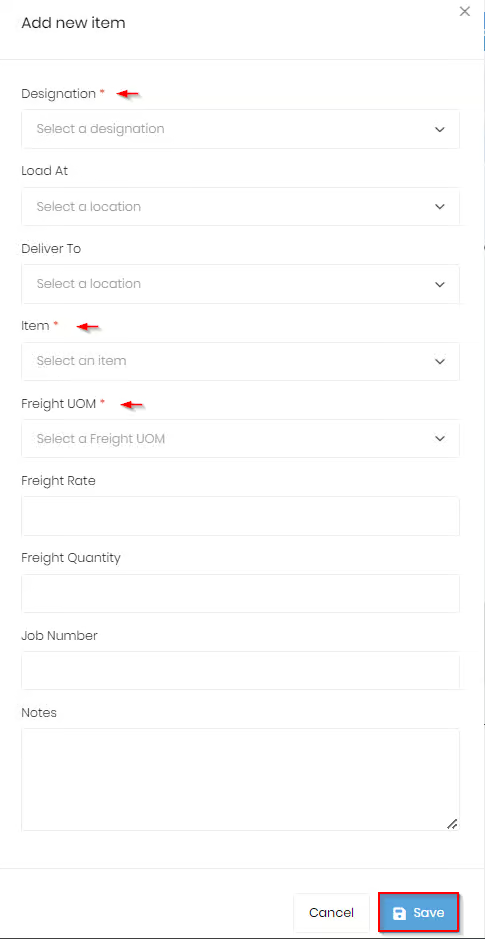
Once you save the quote item, you can add a comment or note.
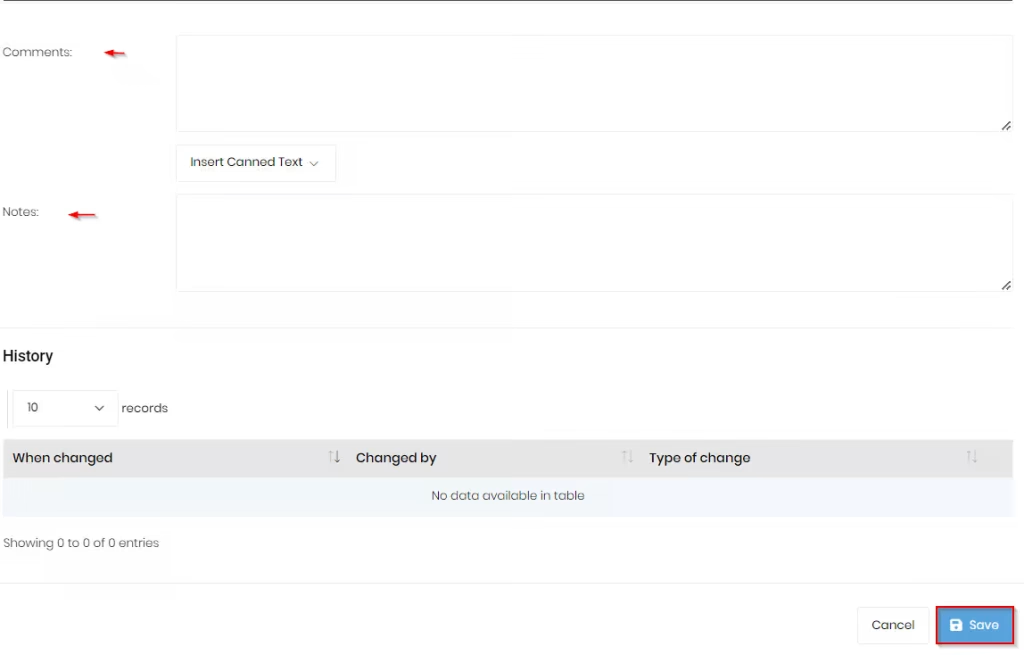
Once you completed the steps, click on the “Save” button.
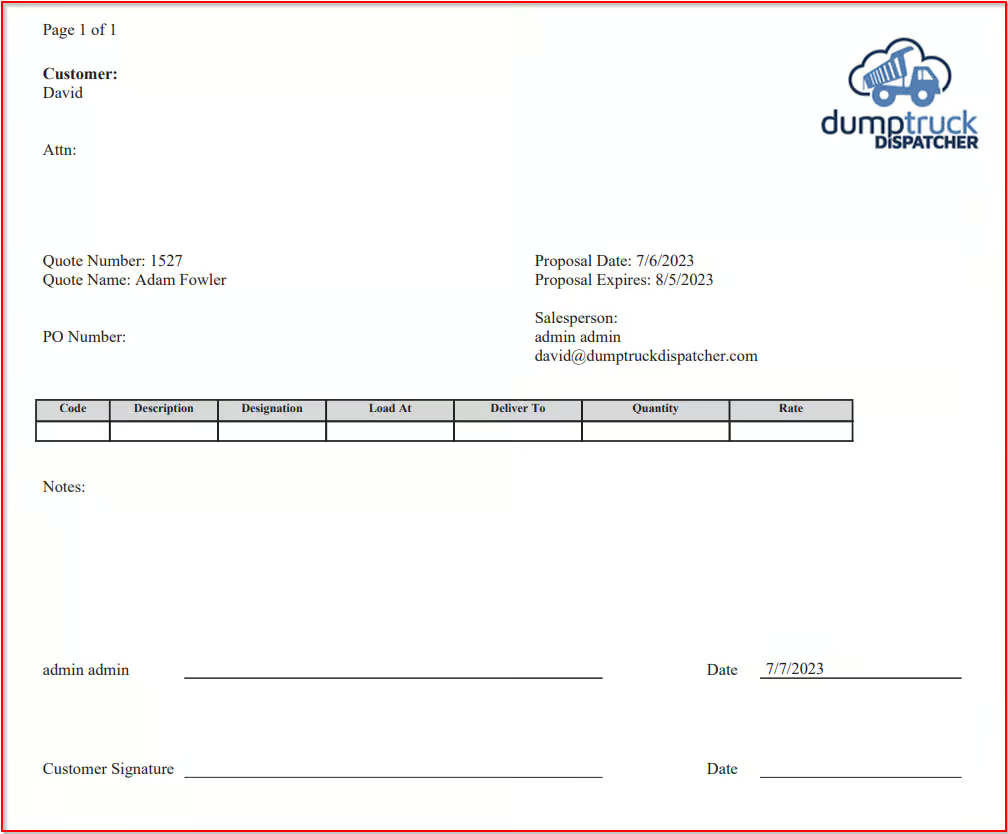
When you click the “Print Quote” button on a quote, you will get a quote printed that looks like the quote below. If the person that created the quote has uploaded their signature to their profile, it will be displayed on the printed quote.
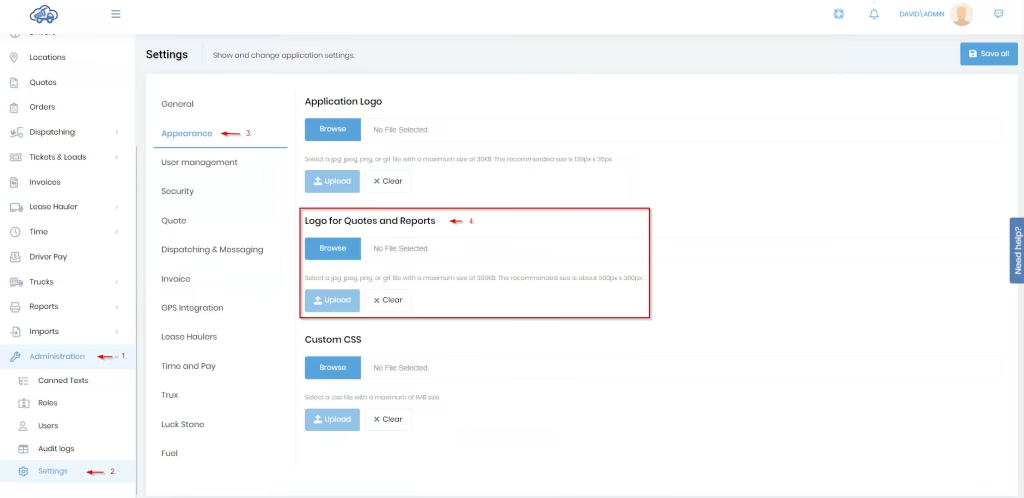
You can add your own logo under settings so that your quotes will have your logo displayed. You may see the steps to do so below.
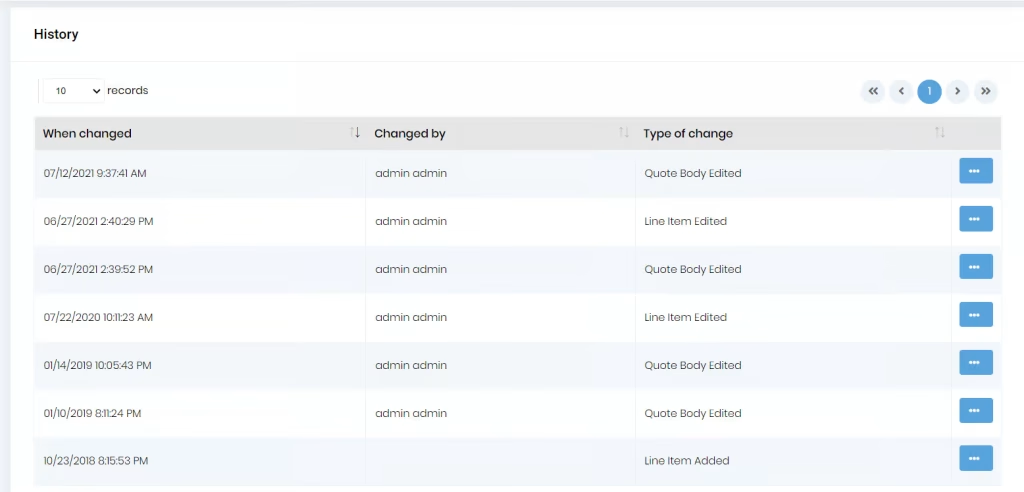
Shows a list of the changes to quotes that have been printed or sent to a customer. This allows you to know which quotes you might need to follow up with the customer. Clicking the ellipsis button will show the menu of options for the associated quote will open the associated quote.
A nightly process will run to set the projects and quotes to inactive when this date has passed. Inactive quotes will not be displayed in the list of quotes that can be associated with an order.
Dump Truck Dispatcher tracks the materials delivered on orders created from quotes. If you want to see the amount of material delivered against a quote, you can check it as shown in the video below.
To make a quote from a job in Dump Truck Dispatcher follow these steps:
You don’t add the job to the quote; instead, you create a job. After entering the customer, if the customer has associated quotes, you’ll see a dialog that allows you to select the desired quote. Selecting a quote will tie this order to this quote.
Yes. If you are on the “Quotes List” and click the menu button for the desired quote, you’ll see an option for “Edit”. Click on the “Edit” option, and the “Quote detail” will be displayed. No changes will be saved if you don’t save changes when exiting the quote.