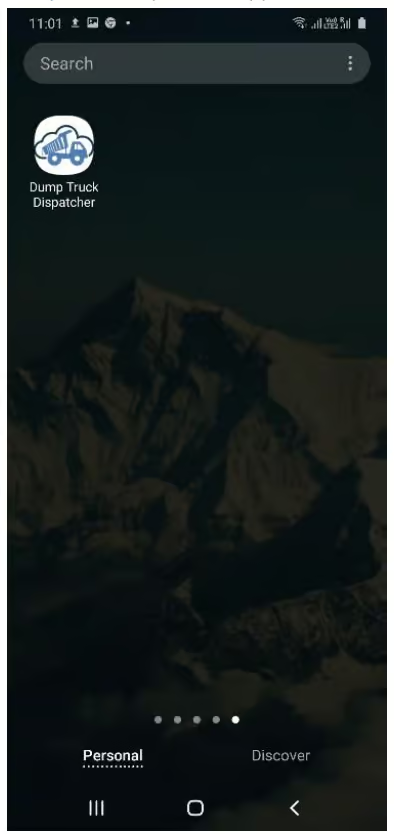
These instructions are for the older PWA (Progressive web app) version of Dump Truck Tracker. If you aren’t sure what version to use, read this article.
Follow the instructions in the below pdf to add the Driver app to an Android device’s home screen.
1. Open the “Dump Truck Dispatcher” application in the chrome browser by typing https://pwa2.dumptruckdispatcher.com into the browser address bar at the top of the browser.
2. Enter your login credentials on the login screen. You’ll need to set the tenant under tenant control by clicking the “Change” link and entering your tenant name.
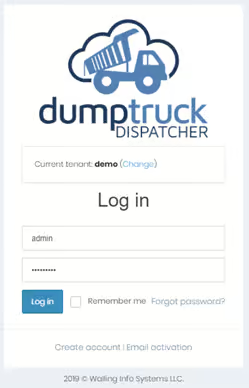
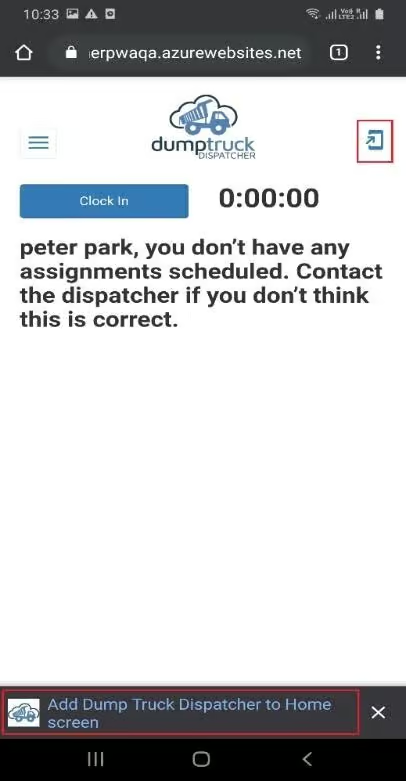
3. Click once anywhere on the screen.
4. An option to add the application to the home screen will be displayed at the bottom of the screen as shown in the image below (Also, a small icon will be shown next to the “dump truck dispatcher” logo) which can also be used to add the application to home screen).
5. Another way of adding the application to the home screen is by clicking on the icon with 3 vertical dots near the top right in the chrome browser, and then selecting the “add to home screen” option. This is shown in the image to the right.
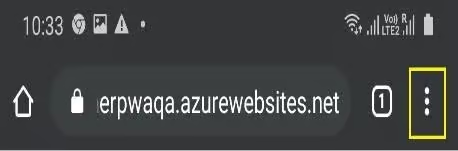
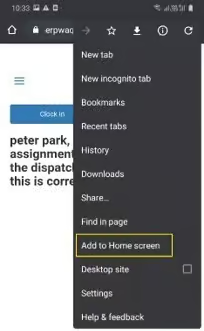
6. Once “Add to Home screen” is selected, a small confirmation dialog will be displayed where you should click “Add” to add the application to the Home screen.
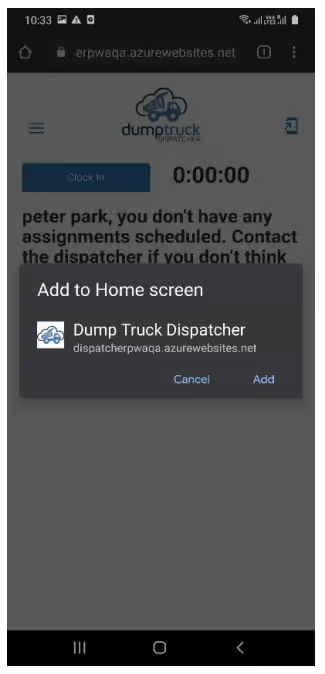
7. After adding the driver application to the home screen, the “Dump Truck Dispatcher” app icon is available from your home screen to be easily started.